
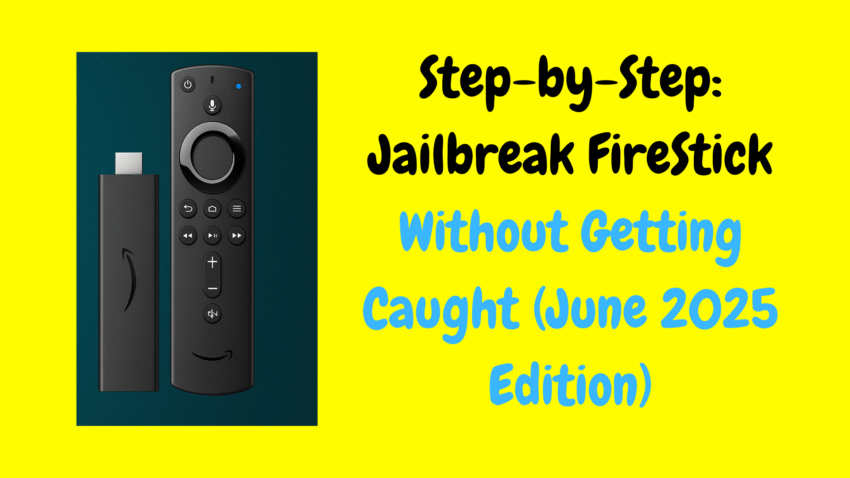
The Amazon FireStick is one of the most popular streaming devices available today. Compact, affordable, and easy to use, it transforms your regular TV into a smart entertainment center. While many users simply use the FireStick with default apps like Netflix or Prime Video, there’s a whole world of customization and optimization available that can take your streaming experience to the next level.
In this guide, we will explore how you can unlock the full potential of your FireStick through legal and safe means. Whether it’s installing third-party apps, managing settings, or enhancing performance, this article will provide you with everything you need to get the most out of your device.
What Does It Mean to “Unlock” Your FireStick?
When people talk about “unlocking” a FireStick, they often mean customizing it beyond the factory settings to access more content and features. It’s important to understand that “unlocking” here refers to customizing and optimizing your FireStick in ways Amazon allows — not engaging in illegal activities or using unauthorized content.
Some common ways users personalize their FireStick include:
-
Installing apps outside the Amazon App Store
-
Improving device performance
-
Using VPNs for privacy and accessing geo-restricted content
-
Setting up parental controls
-
Customizing the user interface
All of these steps can enhance your experience without violating any laws or terms of service.
Step 1: Enable Apps from Unknown Sources
By default, FireStick restricts installing apps that are not from the official Amazon App Store. However, Amazon allows you to enable the installation of trusted third-party apps through a setting called “Apps from Unknown Sources.”
How to Enable This Setting:
-
From the FireStick home screen, go to Settings.
-
Select My Fire TV or Device & Software.
-
Click on Developer Options.
-
Turn on Apps from Unknown Sources.
-
Also, enable ADB Debugging if you want to use developer tools.
Enabling this setting allows you to install apps that might not be officially available but are legal and safe, such as media players or streaming services.
Step 2: Install a Downloader App
Since you can now install apps from outside the App Store, you’ll need a tool to download APK files directly to your FireStick.
-
Search for the Downloader app in the Amazon App Store.
-
Install it — this app will allow you to enter URLs and download files easily.
Step 3: Install Legal Third-Party Streaming Apps
There are many legitimate streaming apps that offer free or subscription-based content but may not be in the Amazon App Store. You can use the Downloader app to install these safely.
Popular Legal Apps You Can Install:
-
Kodi: A media player that organizes your own media files and can add legal content add-ons.
-
Pluto TV: Free live TV and on-demand content.
-
Tubi: Free movies and TV shows supported by ads.
-
Crunchyroll: For anime enthusiasts with free and paid content.
-
Plex: Stream your personal media library or use free ad-supported content.
Remember: Always download APKs from official sources or trusted sites to avoid malware.
Step 4: Use a VPN for Privacy and Access
Virtual Private Networks (VPNs) are highly recommended for FireStick users who want enhanced privacy and secure streaming. VPNs encrypt your internet traffic, hide your IP address, and can help you access content available in different countries.
Benefits of Using a VPN:
-
Protect your online privacy.
-
Access geo-restricted streaming libraries legally available in other regions.
-
Prevent ISP throttling for smoother streaming.
Make sure to use a reputable VPN service that supports FireStick and offers fast speeds.
Step 5: Customize Your FireStick Experience
Organize Your Apps
-
Keep your home screen tidy by moving frequently used apps to the front.
-
Uninstall apps you don’t use to free up storage.
Manage Storage
-
Use the FireStick settings to clear cache regularly.
-
Consider adding external storage if your device supports it (e.g., USB drives).
Use Parental Controls
Protect your family by setting up parental controls on FireStick.
-
Go to Settings > Preferences > Parental Controls.
-
Enable PIN protection to restrict access to certain apps or content ratings.
Step 6: Improve Performance
Restart Regularly
Restart your FireStick occasionally to clear temporary files and refresh the system.
Clear Cache
Cached files can build up and slow down your device.
-
Go to Settings > Applications > Manage Installed Applications.
-
Select apps and clear their cache.
Use Lightweight Apps
Choose apps that are optimized for FireStick and don’t consume excessive resources.
Step 7: Explore Voice Commands and Alexa Integration
FireStick comes with Alexa voice remote support. You can:
-
Search for shows and movies by voice.
-
Control playback (pause, rewind, fast forward).
-
Open apps and launch settings.
Learning how to use these features can make navigation much faster and more convenient.
Important Tips for Safe and Responsible Use
Avoid Pirated Content
Never stream or download content that is unauthorized or pirated. Using illegal streams can lead to legal trouble and compromises your device’s security.
Keep Your Device Updated
Regular software updates from Amazon improve security and performance.
-
Go to Settings > My Fire TV > About > Check for Updates.
Use Strong Passwords
Protect your Amazon account and any streaming services with strong, unique passwords.
Regularly Review Installed Apps
Delete apps you no longer use to minimize security risks.
Troubleshooting Common FireStick Issues
Slow Performance
-
Clear cache and restart your device.
-
Check your internet speed.
-
Avoid running too many apps simultaneously.
Apps Not Installing
-
Ensure “Apps from Unknown Sources” is enabled.
-
Use the Downloader app correctly and verify APK URLs.
Streaming Buffering
-
Use a wired Ethernet connection if possible.
-
Lower video quality settings.
-
Use a VPN to avoid ISP throttling.
Conclusion
Unlocking the full potential of your Amazon FireStick doesn’t mean breaking any rules. It’s about exploring safe, legal ways to customize and optimize your device so that you can enjoy the best streaming experience possible. By enabling apps from unknown sources, installing legal third-party apps, using a VPN, and managing settings wisely, you can make your FireStick truly personalized.
Always prioritize security, avoid illegal content, and keep your device updated. With these steps, your FireStick will be a powerful, versatile entertainment hub for years to come.